
The printed sheet
How the Value-First Team sets up its own HubSpot portal, for HubSpot users.
Our episodes, clips, recaps and articles, and many of our documents, are kept as Listings.
HubSpot built this object for property to be bought, sold or rented. We use it as the record of much of what we produce, from show episodes to documents.
Why a Listing?
“I just never use it [Listings] for real estate, but I use it a lot for a lot of stuff. … I treat it like an index almost.”
Chris Carolan, Let’s Unbox: HubSpot Data Model Builder with Maggie Mirsky, 24 April 2025
Try it in your portal
- Turn on Listings. Use them for what you make, not only property for sale: one record per episode, article or document. Data Management › Data Model › Manage tab › Activate object. All plans; Super Admin.
- Give Listings stages. Add stages that keep recorded and published apart, as ours do. Settings › Data Management › Objects › Listings › Pipelines tab. Default pipeline: any plan; new one: Starter or above. Needs Edit property settings.
- Label who is on it. Label the link between a contact and a Listing, such as host, co-host or guest. Data Management › Data Model › Edit Data Model › Create association label. Professional or Enterprise; Super Admin.
What do we keep about a Listing?
Beyond HubSpot’s own listing properties, we keep:
- What kind of thing it is. One choice that tells an episode from a clip, an article, a recap or a document.
- A guest’s run-up. Whether the guest is invited, confirmed or declined, and which prep and thank-you messages went out.
- What we drew from the recording. A summary, takeaways, keywords, sound bites and title ideas.
- Clips and kept moments. Where a clip sits in its episode; for a kept spoken moment, its exact words and whether we may use them.
Whose value does it serve?
Value for the Customer · Value for the Community
That means the person who watches or reads each piece we publish, and the wider community, whether or not that person goes further with us.
What links to a Listing?
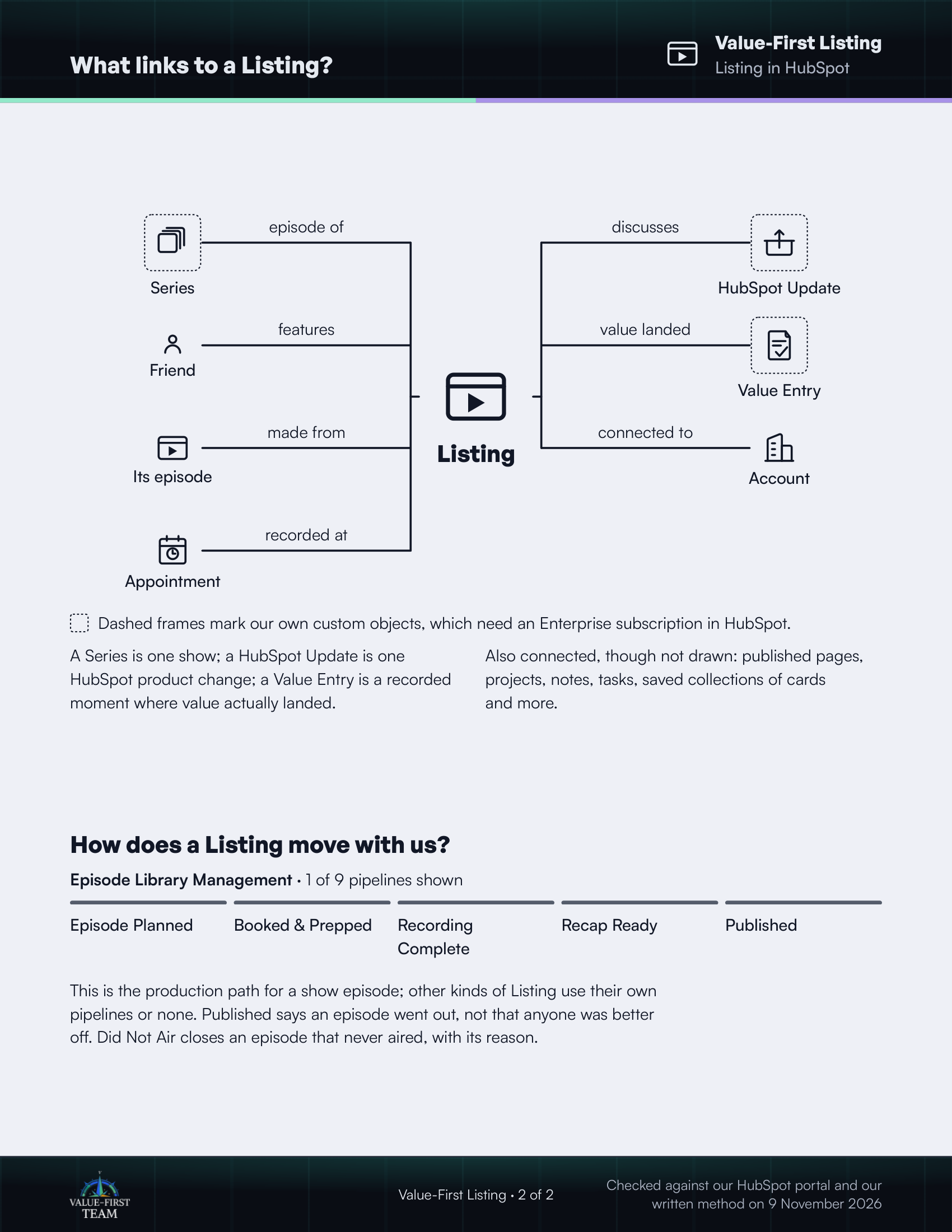
- episode of Series (custom object)
- features Friend
- made from Its episode
- recorded at Appointment
- discusses HubSpot Update (custom object)
- value landed Value Entry (custom object)
- connected to Account
Dashed frames mark our own custom objects, which need an Enterprise subscription in HubSpot.
On the printed sheet these objects are drawn with dashed frames; this list gives the same links without the frames.
A Series is one show; a HubSpot Update is one HubSpot product change; a Value Entry is a recorded moment where value actually landed.
Also connected, though not drawn: published pages, projects, notes, tasks, saved collections of cards and more.
How does a Listing move with us?
Episode Library Management · 1 of 9 pipelines shown
- Episode Planned
- Booked & Prepped
- Recording Complete
- Recap Ready
- Published
This is the production path for a show episode; other kinds of Listing use their own pipelines or none. Published says an episode went out, not that anyone was better off. Did Not Air closes an episode that never aired, with its reason.
Checked against our HubSpot portal and our written method on 9 November 2026